

Adding a Link Card
To add a new link card, click the Add Card button in the top right corner of the Platform Editor. A popup will appear showing all available content types; select Link to proceed.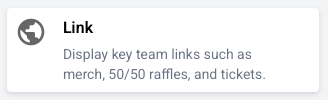
A real-time preview of your card is displayed on the right hand side of the editor as you make changes.
Card Content
Card Name A name for internal use only. This helps you identify the card within the Platform Editor and is not visible to fans. Display Type Choose how your card will look. Two options are available:- Template Uses a pre-designed card layout with your team’s primary and secondary colors. You will be prompted to select an icon from the icon library, or upload a custom one. Custom icons must be a square image under 512KB. You will also need to enter a Title, which is the fan-facing text displayed on the card.
- Custom Image Upload your own image to display in the card.
https://.
Leaving the destination field empty will make the card non-clickable, turning it into a static banner. This is useful if you simply want to display an informational message or visual on your platform without linking anywhere.
Design & Style
Card Size Choose from the following size options:- Half Width (192 x 80 px) Designed to be paired with another half width card, appearing side by side.
- Default (400 x 80 px) The default card size recommended; slim and streamlined.
- Medium (400 x 120 px) Recommended for one (1) or two (2) cards that you want to highlight a little bit more. GIFs work well with this size, as do static images.
- Large (400 x 160 px) Recommended for up to one (1) card that contains a lot of information, and that is not necessarily clickable.
- XL (400 x 280 px) Only recommended for up to one (1) card at a time on the platform, as this size takes up a lot of visual real estate. Great for highlighting exclusive, time-sensitive deals or promotions.
Rearranging Content
When a new card is created it will appear at the top of your platform. To move it to the desired position, use drag and drop:- Locate the six dots in the top left corner of the card you want to move
- Click and hold the dots
- Drag the card to the desired position and release